Dark Mode in TanStack with MUI
by Cornelius Weidmann on 13 March 20264 min readI recently migrated a project from Next.js to TanStack Start and the first thing I bumped into is the infamous “Dark Mode flicker”. I don’t know why, but even in 2026 it’s still a mild pain to prevent this “flash” or “flicker” because there are so many ways to render content (SSR, SSG, etc.).
In this post I’ll cover how to implement Dark Mode for a server rendered setup (SSR). However, this setup can easily be converted to a statically generated setup (SSG) with minimal changes.
There is quite a lot to cover. A fully functional example is available on GitHub if you want to jump right in.
If you need a bit of guidance, then read along. Here’s what we’ll implement:
ColorModeenum and zod schema which we can use throughout the app (“light”, “dark” or “system”)- TanStack
serverFnto read/write the ColorMode to a cookie mui-themewith CSS variables andThemeProviderto manage the styling throughout the appdarkModeScriptto ensure NO initial flicker when the “system” ColorMode is selected- A loader in
__root.tsxto ensure the ColorMode from the cookie gets applied throughout the app ThemeSwitcherto toggle between ColorModes- Optional: Convert to SSG setup
Pre-requisites:
- TanStack Start project, with MUI and zod installed.
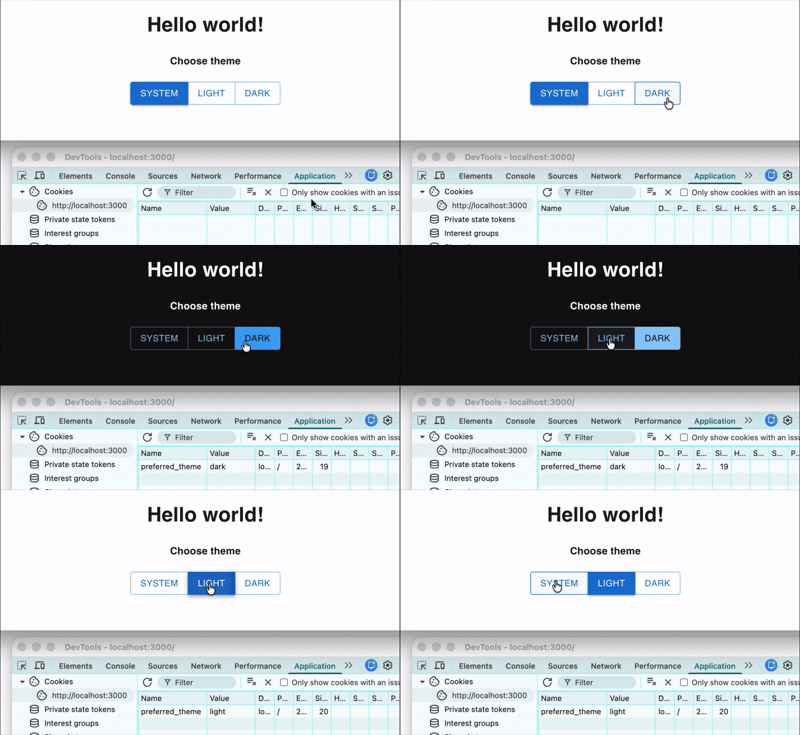
With this setup, we’ll accomplish the following:
- Prevent flash of incorrect theme on first load
- Persist theme across browser sessions
1. Create ColorMode
import { z } from 'zod'

export const ColorMode = {
  SYSTEM: 'system',
  LIGHT: 'light',
  DARK: 'dark',
} as const
We don’t strictly need this, but it does make managing the ColorMode throughout the app easier. We can use this both on the server and client side.
2. Create serverFns
import { createServerFn } from '@tanstack/react-start'
import { getCookie, setCookie } from '@tanstack/react-start/server'

import { ColorMode, zColorMode } from '../../types-enums'

const COOKIE_THEME_KEY = 'preferred_theme'

export const getThemeFromCookie = createServerFn()Next we create methods to read and write to a cookie, and set the default value to “system”. The beauty of these methods (server functions) is that we can call them from any component, client or server side.
Caveat: The methods must be defined in a file that ends with *.functions.ts.3. Create mui-theme and ThemeProvider
import { createTheme } from '@mui/material/styles'

export const theme = createTheme({
  cssVariables: {
    colorSchemeSelector: 'class',
  },
  colorSchemes: {
light: { palette: { mode: 'light' } },We create a MUI theme. It’s important to define the cssVariables property with colorSchemeSelector: 'class'. We do this so we can pass the ColorMode to the html tag via the class attribute.
import { CssBaseline } from '@mui/material'
import { ThemeProvider as MuiThemeProvider } from '@mui/material/styles'

import { theme } from '../styles/mui-theme'
import type { ColorMode } from '../types-enums'

type ThemeProviderProps = {
defaultMode: ColorModeNext we need to ensure that MUI uses our theme that we just created. We’ll use MUI’s ThemeProvider for that. We create a small wrapper and ensure to set the storageManager={null}. By default MUI stores the ColorMode in localStorage, and since we’re managing the ColorMode ourselves we don’t need this out-of-the-box logic.
Additionally, we set the noSsr prop. This disables double rendering which MUI’s ThemeProvider does out of the box to prevent SSR hydration mismatches. Again, we’re in full control of the ColorMode so we don’t need double rendering.
4. Create darkModeScript
const mode = window.matchMedia('(prefers-color-scheme:dark)').matches ? 'dark' : 'light'
document.documentElement.classList.replace('system', mode)
We need this script, because without it when a user has “system” selected (which is the default) and their OS has dark mode enabled then we’d have an initial flash of the “light” theme until the client is fully rendered.
5. Pass ColorMode through to __root.tsx
/// <reference types="vite/client" />
import * as React from 'react'
import { TanStackRouterDevtools } from '@tanstack/react-router-devtools'
import { HeadContent, Link, Outlet, Scripts, createRootRoute } from '@tanstack/react-router'
import appCss from '../styles/app.css?url'

import ThemeProvider from '../components/ThemeProvider'
import { getThemeFromCookie } from '../lib/theme/theme.functions'This might look overwhelming at first, but the changes are relatively straight forward. First we call our serverFn in the root loader. This ensures we read the ColorMode from our cookie before any rendering takes place. Next, we define the color-scheme meta tag in the head component to make native UI elements (like scrollbar, form controls, background etc.) also adhere to the correct ColorMode. Then we pass the ColorMode through to our ThemeProvider and the RootDocument, where, in the latter, we attach the ColorMode via the class attribute to the html tag. Lastly, we inject our darkModeScript in the head when “system” mode is detected.
6. Toggling ColorMode via ThemeSwitcher
import { useColorScheme as useColorSchemeMui } from '@mui/material/styles'

import { setThemeCookie } from './theme.functions'
import type { ColorMode } from '../../types-enums'

export const useColorScheme = () => {
  const muiColorScheme = useColorSchemeMui()
To make our lives easier we create a wrapper for MUI’s useColorScheme hook. This ensures that our theme cookie always gets set when the ColorMode is toggled in the app.
import { Button, ButtonGroup } from '@mui/material'

import { useColorScheme } from '../lib/theme/useColorScheme'
import { ColorMode } from '../types-enums'

const colorModeOptions = [
  { value: ColorMode.SYSTEM, label: 'System' },
{ value: ColorMode.LIGHT, label: 'Light' },How to build the ThemeSwitcher component is really up to you. The important thing here is that we need to use our custom hook to ensure that the ColorMode in the app always gets synced back to our cookie.
And with that we now have a fully functional end-to-end implementation of Dark Mode in Tanstack and MUI.
If, you do not plan on using SSR, then take a look at the next step where we make this entire setup work for SSG.
7. Optional: Convert to SSG setup
import { tanstackStart } from '@tanstack/react-start/plugin/vite'
import { defineConfig } from 'vite'
import tsConfigPaths from 'vite-tsconfig-paths'
import viteReact from '@vitejs/plugin-react'

export default defineConfig({
  server: {
port: 3000,We need to set the prerender flag to true, so the entire app gets pre-rendered. Then in our ThemeProvider.tsx (from Step 3) we need to make the following changes:
import { CssBaseline } from '@mui/material'
import { ThemeProvider as MuiThemeProvider } from '@mui/material/styles'
import InitColorSchemeScript from '@mui/material/InitColorSchemeScript'

import { theme } from '../styles/mui-theme'
import type { ColorMode } from '../types-enums'

type ThemeProviderProps = {We attach MUI’s <InitColorSchemeScript /> and pass the ColorMode to it and, more importantly, configure it to use the class attribute, since that’s what we use on the main html tag and in mui-theme.ts.
That’s all for this one. Happy coding!